





If your child already has an assigned teacher and an agreed-upon weekly schedule, you can book and pay for private lessons directly through the RuKidsClub website.
Regular lesson schedules must first be arranged with the RuKidsClub administration team by email or through our official messaging channels. Once the schedule is confirmed, your child’s time slot is reserved and added to your account.
You must be logged in to your RuKidsClub account to book lessons.
1. Check Your Regular Lesson Schedule
Before booking, log in to your RuKidsClub account.
Find the section:
My Account → Private Lesson Assignments
Here you can see:
- Your child’s name
- Assigned teacher
- Subject
- Regular lesson day and time
If your child’s teacher and schedule are listed, you’re ready to book lessons..
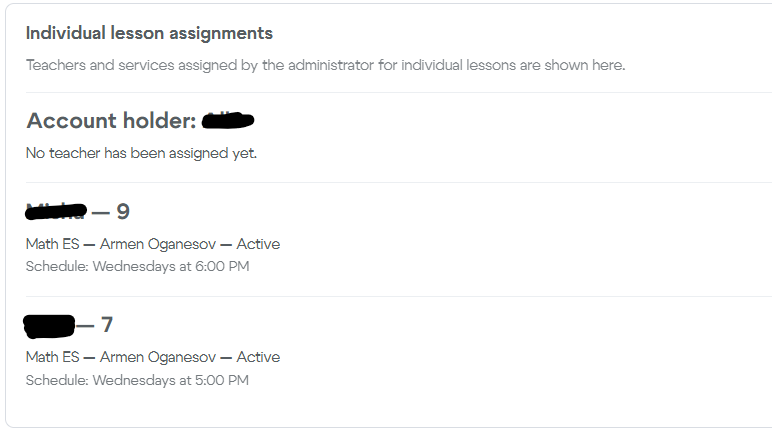
If no teacher or schedule is listed for your child, please contact RuKidsClub. You’ll be able to book lessons once the assignment has been set up.
2. Find Your Subject
Go to:
Find the subject your child is taking, such as Russian, Math, Reading, Art, or another subject.
Open the subject’s page.
Look for the section “Booking & Payment for Existing Students.”
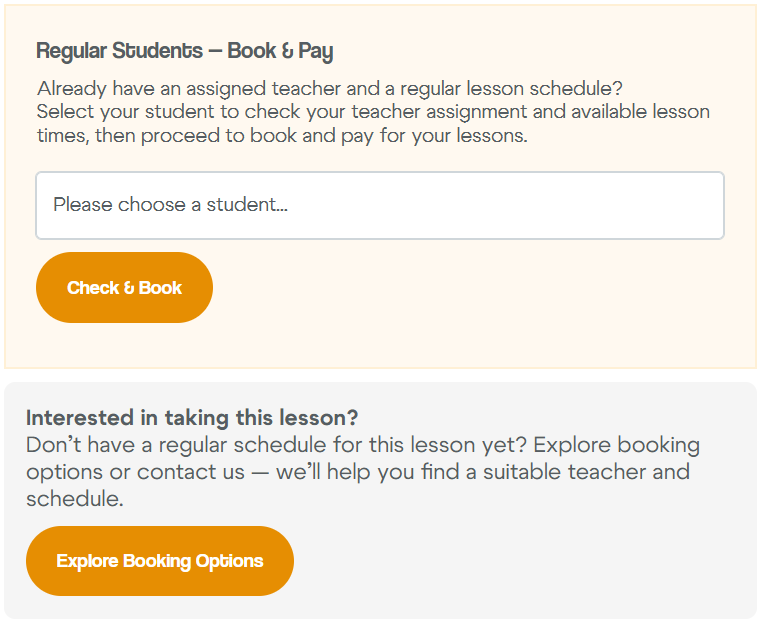
Please note: You must be logged in to your account to use this booking option.
3. Select Your Child
In the “Booking & Payment for Existing Students” section:
- Select your child from the dropdown menu.
- Click “Check & Book.”
If the dropdown is empty or your child isn’t listed, make sure they have been added to your RuKidsClub account.
If you have more than one child, lessons must be booked and paid for separately for each student.
4. Check Your Booking Eligibility
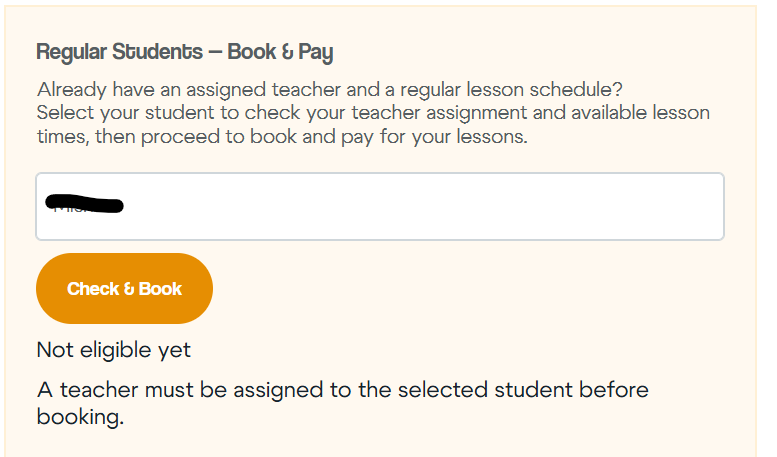
After clicking “Check & Book,” the system will check whether your child has an assigned teacher and a regular schedule for that subject.
If everything is set up correctly, you’ll see a “Booking Available” message with your teacher’s name.
Click “Proceed to Booking” to continue.
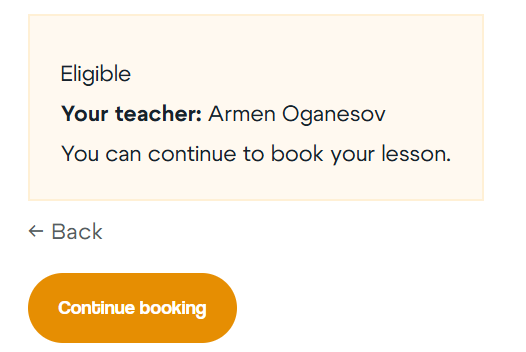
If your child doesn’t have an assigned teacher or schedule, you’ll see a “Booking Not Available Yet” message.
In this case, please contact RuKidsClub so we can set up your child’s teacher assignment and schedule.
5. Select Your Lesson Date and Time
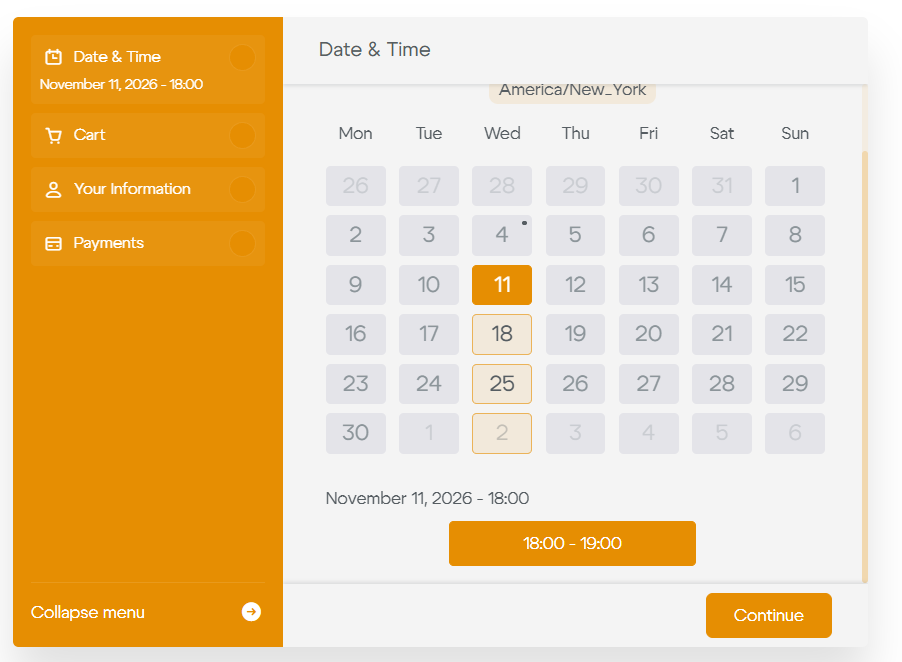
The booking calendar will open.
You’ll see the available dates and times based on your child’s regular schedule.
- Select the date you’d like to book.
- Confirm the lesson time.
- Click “Continue.”
6. How to Book Multiple Lessons at Once
After selecting your first lesson, you’ll be taken to the “Cart” step.
This is where your selected lessons are listed.
If you’d like to book several lessons and pay for them together:
- Click “Book More” at the bottom of the booking window.
- Select the date of your next lesson.
- Click “Continue.”
- Repeat these steps until you’ve added all the lessons you want to book.
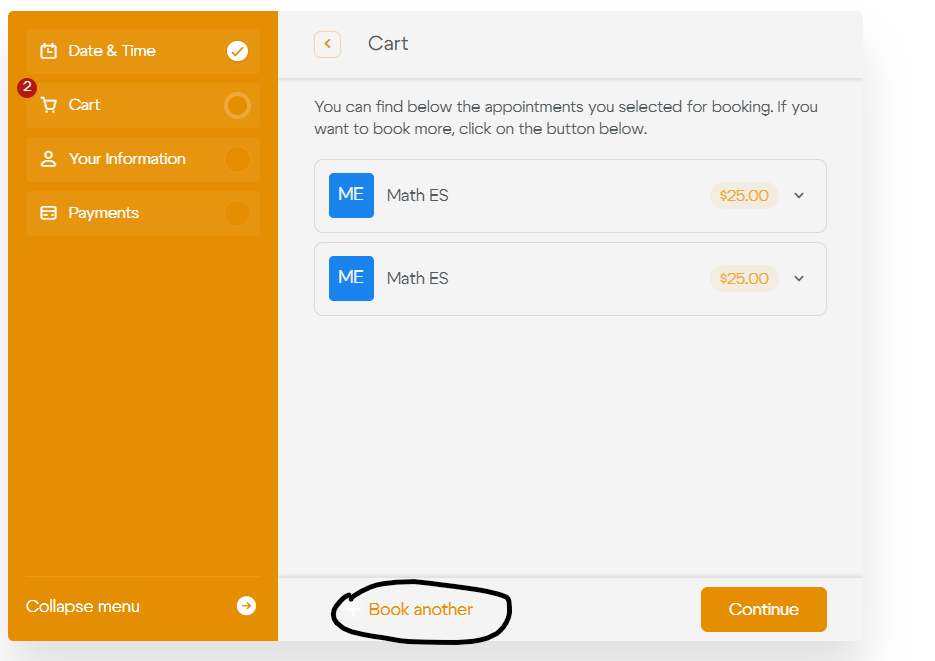
Each lesson will appear as a separate item in your cart.
Important: If you’d like to pay for multiple lessons in one transaction, add all your lesson dates to the cart before proceeding to checkout.
7. Review Your Contact Information — Do Not Edit It During Booking
Once you’ve added all your lessons, click “Continue.”
The next step will display your account information.
Important: Do not change your name, email address, or other personal details in the booking form.
This information must match the details saved in your RuKidsClub account. Changing it during booking may cause an error.
If you need to update your information:
- Exit the booking process.
- Go to My Account → Account Details.
- Update your information and save the changes.
- Start the booking process again.
If everything looks correct, leave the information as it is and click “Continue.”
8. Review Your Lessons and Complete Payment
Before paying, carefully review:
- The dates of your selected lessons
- The time of each lesson
- The total number of lessons
- The total amount due
Make sure you’ve included all the lessons you want to book and haven’t missed any dates.
Once everything looks correct, proceed to checkout and complete your payment through the website’s secure payment system.
After your payment is successful, you’ll receive booking confirmation emails with links to join your lessons.
9. Where to Find Your Booked Lessons and Meeting Links
You can view all your bookings in your RuKidsClub account.
Go to:
My Account → My Lessons → Private Lessons
Here you can view your bookings, teacher information, lesson status, and payment details.
To find a specific lesson:
- Select the appropriate date range using the date filter.
- Click “Filters”
- Find the lesson you’re looking for.
- Click the small arrow on the right to expand the lesson details.
Under “Link and Other Info,” you may find:
- Your lesson meeting link
- Google Classroom link
- Learning materials
- Additional information from your teacher
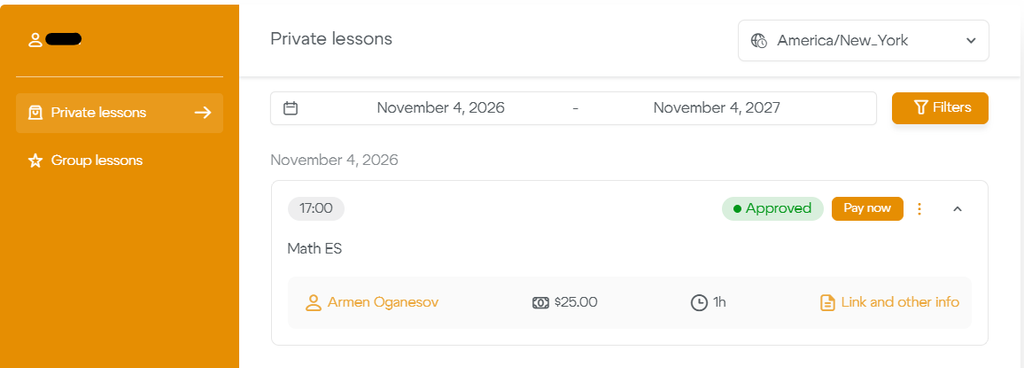
Please note: If you can’t find a lesson, check the date filter first. The lesson may fall outside your selected date range.
Need Help?
If you’re having trouble booking lessons, completing a payment, or finding your meeting links, please contact the RuKidsClub administration team through our official messaging channels or by email at info@rukidsclub.com.
We’re happy to help!